



Learn the differences between Power BI workspace roles including Viewer, Contributor, Member, and Admin. Understand permissions, access control, governance, and best practices for managing Power BI workspaces securely.

Power BI makes it easy for teams to collaborate on dashboards, reports, semantic models, and paginated reports through workspaces. But giving everyone the same level of access can quickly create governance, security, and content management issues.
That is where Power BI workspace roles come in. Power BI workspaces use four main permission levels: Viewer, Contributor, Member, and Admin. Each role determines what a person can view, edit, publish, share, or manage inside a workspace. Microsoft defines these roles as the primary way to control who can do what in a Power BI workspace.
What Are Power BI Workspace Roles?
To manage Power BI permissions effectively, you need to understand how workspace roles control what users can view, create, edit, share, and administer within a workspace.
Power BI workspace roles are permission levels assigned to individuals or groups. These roles can be given to users directly or through security groups, Microsoft 365 groups, or distribution lists. If someone belongs to multiple groups with different roles, they receive the highest permission level assigned to them.
The four workspace roles are:
Role | Best For | Access Level |
Viewer | Report consumers and business users | Read-only access |
Contributor | Report builders and BI developers | Create and edit content |
Member | Team leads and content managers | Manage content, apps, and lower-level users |
Admin | Workspace owners and platform administrators | Full control |
Viewer: Read-Only Access for Report Consumers
The Viewer role is designed for users who need to view and interact with reports, dashboards, and other workspace content but should not create, edit, or delete anything.
Viewers can typically:
• Open and interact with reports and dashboards
• View workspace content
• Create subscriptions to reports, depending on licensing
• Read data stored in workspace dataflows
• Consume content without managing or modifying it
Viewer is the safest role for most business users because it limits their ability to change content. It is also the role Microsoft recommends when you need to enforce row-level security, or RLS, for users browsing content in a workspace.
When to Use Viewer
Use Viewer when someone needs access to insights, but not the ability to build or modify Power BI content.
Common examples include:
• Executives reviewing dashboards
• Sales teams checking pipeline reports
• Finance users viewing monthly performance
• Clients or stakeholders consuming published reports
• Employees who only need read-only analytics access
Important Viewer Note
Viewer access does not automatically mean a user can build new reports from the underlying semantic model. For that, they may need Build permission on the semantic model. Microsoft notes that Build permission allows users to discover semantic models and create reports or other consumable items from them.
Contributor: Create and Edit Power BI Content

The Contributor role is for users who need to actively build and manage content inside a workspace.
Contributors can generally:
• Create reports, dashboards, and other workspace content
• Edit existing content
• Delete content in the workspace
• Schedule data refreshes, if they also have the required gateway permissions
• Modify gateway connection settings, where applicable
Create reports in other workspaces based on semantic models, when they have the proper permissions
Microsoft’s workspace role table shows that Admins, Members, and Contributors can create, edit, and delete content in the workspace.
When to Use Contributor
Use Contributor for people responsible for building or maintaining Power BI assets, but who should not manage workspace users or fully control the workspace.
Common examples include:
• Power BI developers
• BI analysts
• Data analysts
• Report authors
• Consultants supporting report development
Contributor vs Viewer
The key difference is simple:
Viewers consume content. Contributors create and modify content.
A Viewer can open a report. A Contributor can edit that report, publish new content, delete workspace items, and manage refresh-related tasks if they have the right supporting permissions.
Member: Manage Content and Support Workspace Collaboration
The Member role is a step above Contributor. Members can do many of the same things Contributors can do, but they also have more control over workspace collaboration and app management.
Members can generally:
• Create, edit, and delete workspace content
• Publish, unpublish, and change permissions for workspace apps
• Add users with lower permissions
• Manage semantic model permissions
• Share workspace items
• Help manage app distribution
Microsoft notes that Members can add users to a workspace with lower permissions, but they cannot change existing users’ roles or remove users from workspace roles. To change an existing user’s role, an Admin must remove the user first, and then the Member can add them back with the new role.
When to Use Member
Use Member for trusted users who help manage workspace content and distribution, but do not need full administrative control.
Common examples include:
• BI team leads
• Analytics managers
• Senior report owners
• Department-level Power BI owners
• Users responsible for publishing Power BI apps
Member vs Contributor
The main difference is governance.
A Contributor focuses on building and editing content.
A Member can also help manage app publishing, sharing, and some workspace access responsibilities.
Admin: Full Control Over the Workspace
The Admin role has the highest level of access in a Power BI workspace.
Admins can:
• Update or delete the workspace
• Add or remove users
• Change workspace roles
• Allow Contributors to update the app
• Publish, unpublish, and manage app permissions
• Create, edit, and delete workspace content
• Manage semantic model permissions
• Manage workspace-level access
Only workspace Admins can add or remove users and manage permissions. Microsoft also states that workspace creators are automatically Admins.
When to Use Admin
Use Admin sparingly. This role should be reserved for users who are responsible for workspace ownership, governance, and access control.
Common examples include:
• Power BI administrators
• BI platform owners
• Data governance leads
• Workspace owners
• IT administrators responsible for analytics environments
Admin Best Practice
Every important workspace should have more than one Admin, so the organization is not dependent on a single person. However, Admin access should still be limited to people who truly need full control.
Power BI Role Hierarchy Explained
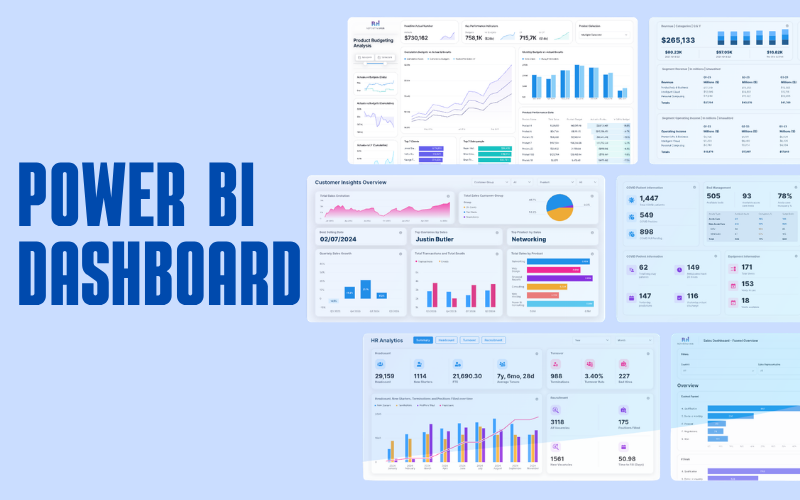
When managing access to a Power BI dashboard, it’s important to understand the role hierarchy that determines who can view, edit, publish, manage users, or fully administer workspace content.
Admin → Member → Contributor → Viewer
Each level adds more capability:
• Viewer: Can consume content
• Contributor: Can build and edit content
• Member: Can manage content distribution and add lower-permission users
• Admin: Can fully manage the workspace, permissions, and users
A simple way to think about it:
Role | Can View | Can Edit | Can Publish / Manage Apps | Can Manage Users | Can Delete Workspace |
Viewer | Yes | No | No | No | No |
Contributor | Yes | Yes | Limited | No | No |
Member | Yes | Yes | Yes | Limited | No |
Admin | Yes | Yes | Yes | Yes | Yes |
Final Takeaway
Power BI permission levels are essential for keeping analytics environments secure, organized, and scalable.
• Use Viewer for report consumers.
• Use Contributor for content creators.
• Use Member for trusted content and app managers.
• Use Admin for workspace owners who need full control.
The best Power BI governance strategy is not giving everyone more access. It is giving each user the right level of access for their role.
Related Posts
- How Shoppers Discover Products in AI Answers - What Ecommerce Sites Should Do
- Best ESG Reporting and Disclosure Software for US Enterprises in 2026
- How Entrepreneurs Can Turn Business Success Into Lasting Wealth
- Rust for E-commerce: When Performance-Critical Backends Outgrow PHP
- E-commerce Virus Removal: How to Detect and Clean an Infected Website
- Top Data Privacy Management Software for 2026