



AI presentation software has matured quickly. The first question is no longer “Which template?”—it’s “Where will this deck live, and will it stay editable?”
If you need a native .pptx, stick with in-app add-ins like Plus AI, Microsoft Copilot, or Claude. Google Slides paired with Gemini owns live collaboration, while browser tools such as Canva and Gamma trade some PowerPoint fidelity for pure speed and visuals.
Updated October 14, 2026, after Microsoft’s multi-step Copilot editing reached PowerPoint, Word, and Excel, this guide folds in Claude’s new add-in and Gemini’s full-deck generation—giving you 2026-ready advice, not last year’s hype.
What counts as a PowerPoint software tool?
A true “PowerPoint tool” either edits native slides directly or exports a file you can reopen in PowerPoint without major repairs. You can think of them in three clear tiers:
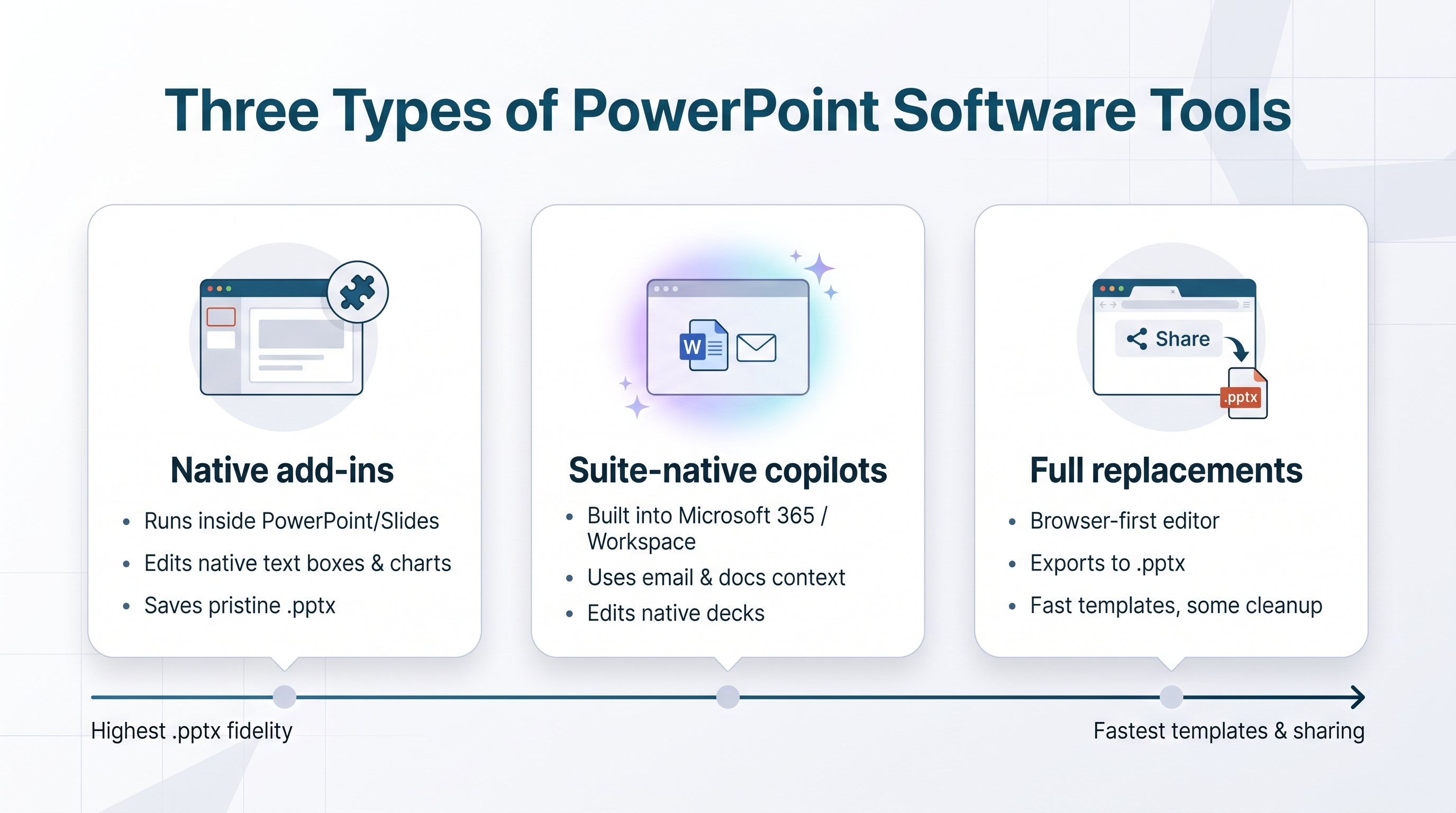
Native add-ins
They run inside PowerPoint or Google Slides, work on real text boxes, charts, and masters, and let you save fully editable files. Examples: Plus AI, Claude for PowerPoint.
Suite-native copilots
These assistants, built into Microsoft 365 or Google Workspace, pull context from email, docs, and cloud storage while they edit native slides. Example: Microsoft Copilot in PowerPoint, Gemini in Slides.
Full replacements
Browser-first platforms with their own canvas move fast with templates, then export to PPTX when you need a hand-off. Expect some cleanup. Examples: Canva, Gamma, Beautiful.ai.
Keep this taxonomy in mind. The right pick depends on whether you need pixel-perfect .pptx fidelity or the quickest path to a shareable link.
Native add-ins
Add-ins run inside PowerPoint or Google Slides, so you keep the familiar ribbon and edit real text boxes, charts, and slide masters with no exporting or re-imports. Because every element stays native, your colleagues can open the file and keep working without layout drift.
Plus AI, Claude for PowerPoint, and ChatGPT for PowerPoint all save directly to an editable .pptx, making this tier the safest choice when a client or compliance team needs a pristine PowerPoint hand-off.
Suite-native copilots
Microsoft Copilot and Google’s Gemini work inside their suites, so you still build slides in PowerPoint or Google Slides while the AI pulls context from Outlook, Docs, Sheets, or Drive. Because the assistant inherits your permissions, DLP rules, and audit logs, IT can often skip a new security review.
Capabilities and even model options vary by license. Copilot’s model switcher (Claude, ChatGPT, or Auto) shows up only on Microsoft 365 Business Premium and higher. Gemini’s full multi-slide generation needs a Google Workspace Business Standard or above. Check your SKU before you schedule a demo.
Full replacements
Browser-first tools such as Canva, Gamma, and Beautiful.ai skip PowerPoint’s object model and render slides on their own canvas. They feel fast for first drafts and offer deep template libraries, yet the .pptx you download is a conversion, not a clone. Text boxes can shift, complex charts may flatten, and brand templates often need manual fixes.
Use this rule of thumb: press Ctrl+S inside PowerPoint. If the file saves instantly, you are in native territory. If you must download a file to reopen elsewhere, you are in replacement land. Remember this trade-off when you weigh speed and design freedom against hand-off fidelity.
How we evaluated the seven tools
We scored every product against the same three scenarios and applied a weighted rubric so results stay apples to apples.
1. Native-compatibility stress test (25 percent)
Open, edit, export, and reopen a 12-slide branded .pptx without breaking slide masters, fonts, or charts.
2. AI draft + cleanup test (20 percent AI quality, 15 percent design control)
For each assistant, feed a six-page market-research brief, ask for an eight-slide draft, and record:
• first-draft generation time
• minutes of manual cleanup (overflow text, mis-aligned icons, off-brand colors)
• number of slides needing redesign
3. Security & collaboration audit (10 percent security, 10 percent collaboration)
Confirm whether the tool inherits suite permissions, supports admin controls, and carries at least SOC 2 Type II or an equivalent attestation.
The final 20 percent covers learning curve, cost, and unique time-savers, creating the 100-point matrix behind our comparison table.
Why so strict? Even frontier agents still struggle: the 2026 PPT-Eval benchmark reports 45 percent full-task success and 57 percent partial success. Human review remains essential.
The best PowerPoint software tools at a glance
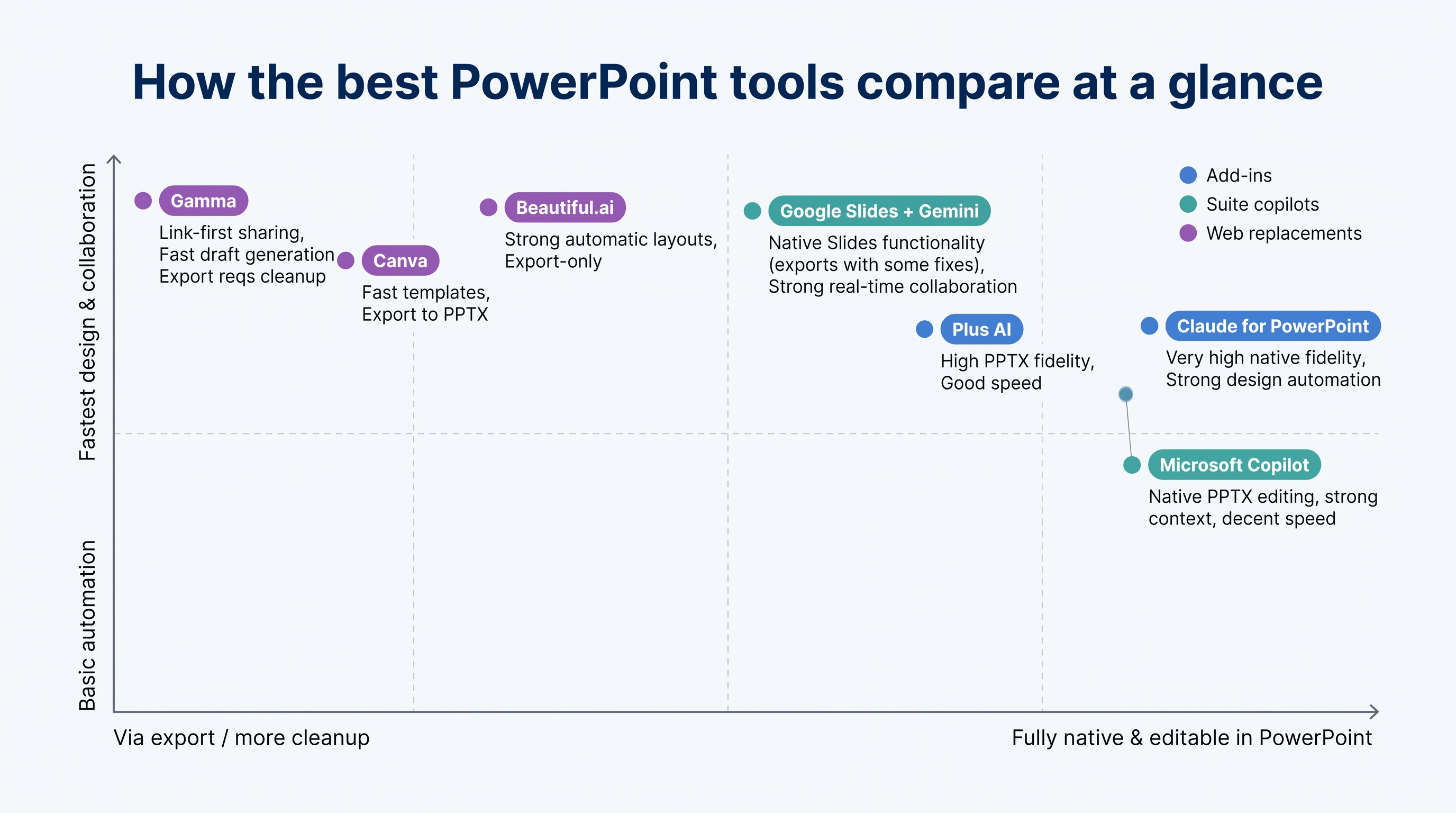
The grid below helps you spot who each tool serves best, whether the file stays fully editable in PowerPoint, and one caution to keep in mind before you subscribe.
Tool | Best for | Type | Editable in PowerPoint? | Starting price* | Biggest caution |
Plus AI | Cross-suite PowerPoint and Slides workflows | Add-in | Yes | $10 per user per month | No permanent free tier |
Microsoft Copilot | Organizations deep in Microsoft 365 | Suite copilot | Yes | $32 per user per month (Business Premium bundle) | Licensing complexity |
Claude for PowerPoint | Precise, template-aware edits | Add-in | Yes | $17 per user per month | Usage caps on long decks |
Google Slides + Gemini | Real-time browser collaboration | Suite copilot | Generates native Slides (exports to PPTX) | from $14 per user per month† | PPTX export may need fixes |
Canva | Asset-heavy marketing decks | Web replacement | Via export | $15 per user per month | Text and charts can shift on export |
Gamma | Fast link-first sharing | Web replacement | Via export | $9 per user per month | Struggles with strict templates |
Guardrailed automatic layouts | Web replacement | Via export | $12 per user per month | Opinionated design system |
Public United States monthly price when billed annually; verified October 14, 2026.
Gemini pricing reflects the lowest Google Workspace plan (Business Standard) that includes full-deck generation; confirm current Workspace tiers before purchase.
The next sections explain why each tool tops its niche. If your workflow changes, another option may save cleanup time.
1. Plus AI: best for native PowerPoint and Google Slides workflows
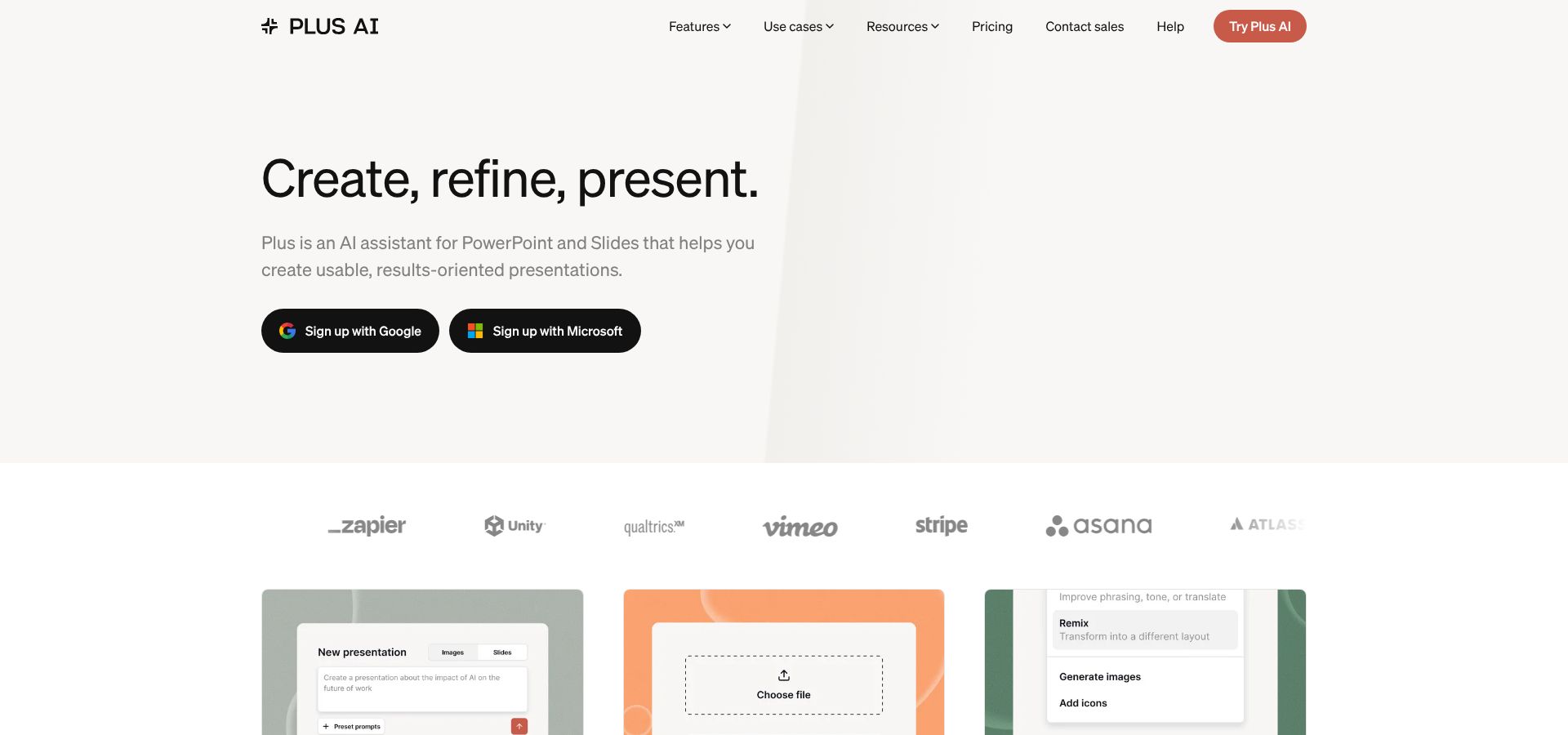
Plus AI in PowerPoint and Google Slides interface screenshot.
Who it’s best for
Teams already working in PowerPoint or Google Slides, such as consultants polishing client decks, sales reps updating pitch templates, or marketers guarding brand guides, will feel at home. The add-in runs inside the editors you open every day, so colleagues without the plug-in can still review the same editable file.
What it can do
Plus AI for Google Slides (and its PowerPoint twin) turns briefs and existing decks into draft slides in minutes. Drop a PDF, Word doc, or older .pptx into the sidebar, choose a slide count, and watch it map headings, pull key stats, and apply your master.
Once the skeleton appears, you can use Remix to re-layout busy slides, Simplify to tighten copy, or Translate for a global client. Need a new proof point? Insert a fresh slide mid-deck and Plus matches fonts, colors, and placeholders automatically. A presentation agent can even run bulk commands such as “shorten every headline under 60 characters” across the file.
Because every element stays native (text boxes, charts, slide masters), hand-off is instant: no exports, no lost fonts, no watermarks.
Watch-outs
• The seven-day trial ends quickly, and there is no permanent free tier.
• Company-wide templates and SSO sit behind higher-priced Team and Enterprise plans.
• Uploads don’t extract images or charts from PDFs; you’ll paste those manually.
Pricing starts at $10 per user per month (annual billing), verified October 14 2026; re-check before purchase.
Where Plus AI still falls short
• No permanent free plan. After a seven-day trial, every tier is paid.
• PDF imports drop graphics. Text comes through, but charts and images stay behind, so you’ll paste them manually.
• Advanced brand controls cost extra. Company-wide template libraries, SSO, and user management open up only on Team or Enterprise plans.
• Browser version is generation-only. It can draft a deck but cannot run the slide-level “Remix” or “Simplify” commands, which limits Chromebook users.
Pricing and security snapshot
Plan | Annual price (USD) | Monthly credits* | Key features |
Basic | $10 per user per month | 100 | Core add-ins |
Pro | $20 per user per month | 300 | Higher credit cap, priority support |
Team | $30 per user per month | 500 | SSO, shared template library, SOC 2 Type II |
Enterprise | Custom | Custom | SCIM, audit logs, IP allow-list |
Large image requests and big document uploads consume more credits, so monitor usage ahead of conferences or product launches.
Bottom line: Budget both dollars and credits, and keep heavyweight visuals on hand for manual insertion. If native PowerPoint fidelity is priceless to your workflow, these trade-offs may still be worth it, as long as you know them upfront.
2. Microsoft Copilot: best for Microsoft 365 organizations
Who it’s best for
Your team will see the most value if you already rely on Microsoft 365. When slides live in OneDrive, data sits in Excel, and chats fly through Teams, Copilot plugs in with no extra security review. Regulated industries such as finance, healthcare, and the public sector benefit because sensitivity labels and DLP policies follow every prompt.
What it can do
Ask Copilot to “pitch our new product to healthcare buyers,” and it drafts slides that pull compliance facts from Word, revenue targets from Excel, and testimonials from Outlook, all inside your template. It also refines an open deck: rewrite a cluttered chart, shorten headings under eight words, or standardize fonts across every slide.
A 2026 update lets Business Premium or higher licenses choose Auto, Claude, or ChatGPT as the underlying model.
Watch-outs
• License maze. Full PowerPoint features require Microsoft 365 Business Premium ($32 per user per month, annual) and rollout can vary by tenant.
• Speed varies. Large prompts that scan SharePoint libraries may take more than thirty seconds during United States peak hours.
• Template quality matters. Copilot inherits your master; messy templates produce messy drafts.
Where Copilot still falls short
• License maze. Full PowerPoint features appear only on Microsoft 365 Business Premium ($32 per user per month, annual) or Enterprise E3/E5. Lower SKUs may get Word or Excel but not slides.
• Garbage in, garbage out. Copilot pulls content from SharePoint and OneDrive. Disorganized libraries feed back vague summaries and off-brand slides.
• Speed wobbles. Large prompts that scan big mailboxes or version histories can take twenty to forty seconds during United States peak hours.
• Template sensitivity. If your master has inconsistent placeholders, Copilot magnifies the mess.
Pricing and security snapshot
Plan (annual) | Copilot add-in included? | Monthly price (USD) | Key extras |
Microsoft 365 Personal | Yes (limited) | $8.25 | Home use only, no SharePoint grounding |
Business Premium | Yes (full PowerPoint) | $32 | Model switcher, Teams and Outlook context |
Enterprise E3/E5 | Yes | From $36 | Advanced DLP, data-residency controls |
Copilot inherits Microsoft 365 sensitivity labels, DLP, and audit logs; prompts and user data are not used to train foundation models.
Bottom line: Copilot is the most context-aware assistant when your Microsoft estate is clean and you can afford the Business Premium price tag. Otherwise, a lighter add-in may deliver faster wins.
3. Claude for PowerPoint: best for precise, template-aware editing
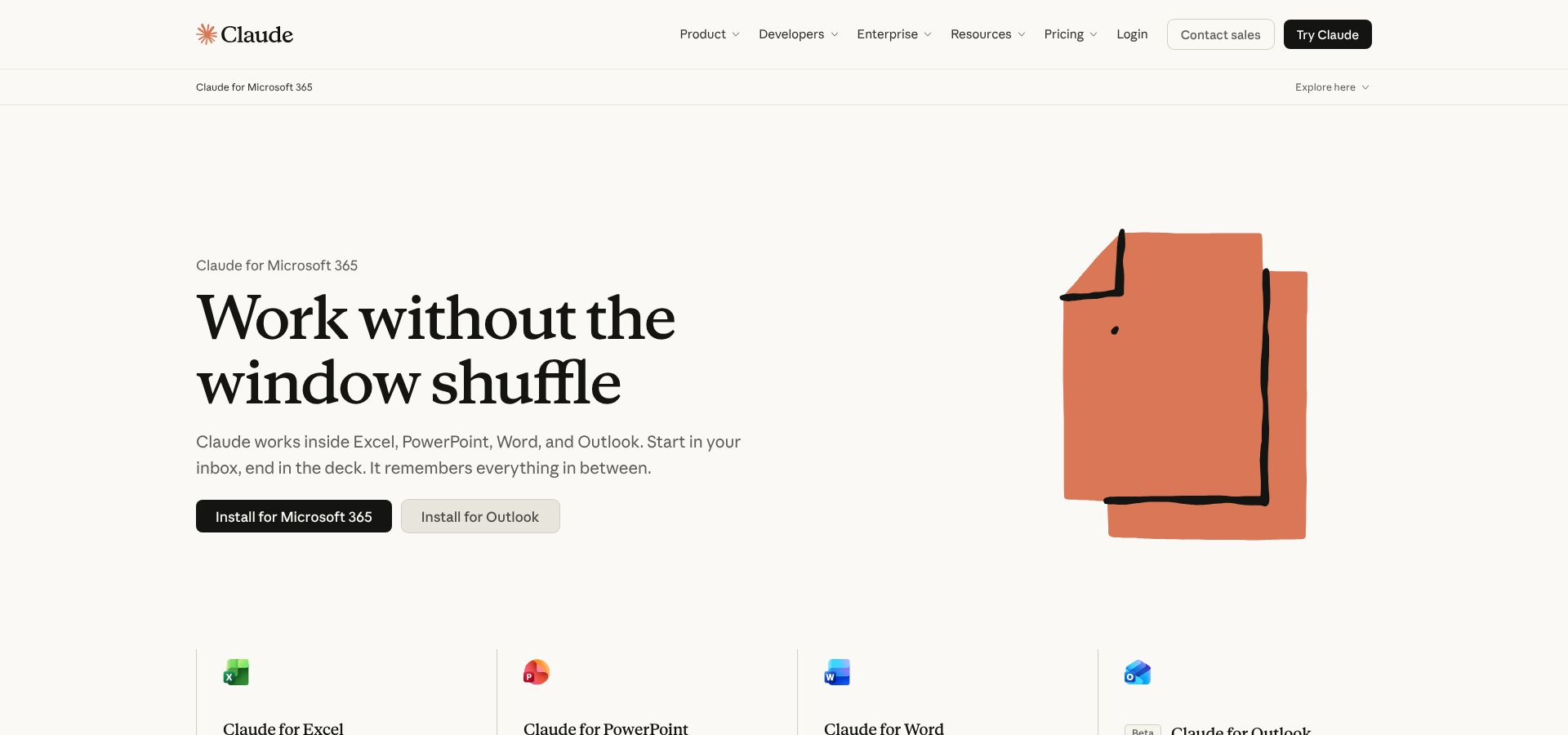
Claude for PowerPoint add-in editing brand-safe slides screenshot.
Who it’s best for
If your team treats the slide master as gospel—think consultants, banks, or pharma compliance groups—Claude keeps you on brand. It scans the master before writing, so locked placeholders, fonts, and colors stay intact. Picture Plus AI as an all-terrain SUV and Claude as a precision sports car built for brand-restricted roads.
What it can do
• Surgical rewrites. Select a slide filled with tangled bullets, ask for a three-column comparison, and Claude rewrites, aligns icons, and preserves spacing in one pass.
• Data-to-visual swaps. Paste raw numbers into Notes, request a clustered bar chart, and get an editable graph that inherits your palette—no flattened images.
• Cross-app memory. Copy a newly calculated table from Excel, jump to PowerPoint, and tell Claude to “summarize Q3 swing factors.” It recalls the data you just copied.
Watch-outs
• Usage caps. Pro seats ($17 per user per month) include twenty-five-thousand context tokens each month; long decks can burn through that quota quickly.
• Install friction. The add-in needs the latest Microsoft 365 build plus a separate Anthropic sign-in; proxy rules can slow rollout.
• New product maturity. Released February 2026, it still misses occasional complex animations and has limited Mac testing.
Claude shines at pixel-perfect edits, but plan for extra tokens on thirty-slide board packs and loop in IT early for deployment.
Where Claude still falls short
• Token ceilings. Pro seats include twenty-five-thousand context tokens per month; Team raises that to sixty-thousand. A thirty-slide deck with heavy charts can use four-thousand to six-thousand tokens in one pass, so power users may need Enterprise or extra API credits.
• Install friction. Requires the latest Microsoft 365 build, admin consent, and a separate Anthropic login. Our setup took about twenty minutes and two IT tickets, longer than the Office Store installs for Plus AI.
• Mac coverage is early beta. As of October 14 2026, Anthropic lists macOS support as “preview only,” with limited animation handling.
Remember to budget both dollars and tokens: Pro costs $17 per user per month (annual) and Team $20, while over-quota usage bills at API rates.
4. Google Slides with Gemini: best for real-time collaboration
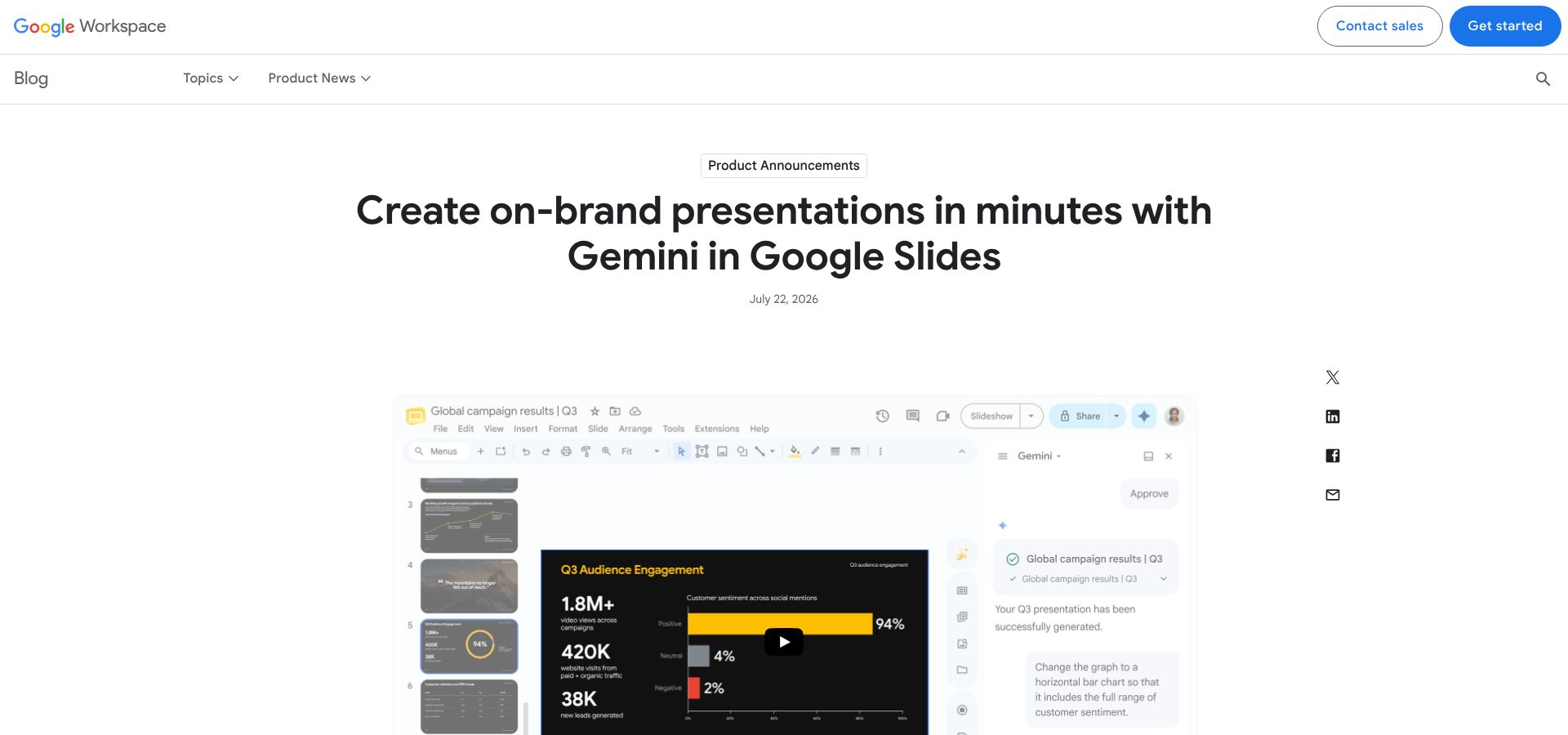
Google Slides with Gemini real-time AI collaboration screenshot.
Who it’s best for
If you already live in Google Workspace, Gemini feels natural. Teachers co-editing lectures, agencies juggling client feedback, and startups that prize quick link sharing over pixel-perfect .pptx files will appreciate its speed.
What it can do
• Generate full decks. Provide an outline, and Gemini drafts native Slides with speaker notes and Drive-sourced images.
• Edit in real time. Colored cursors show who is tweaking copy while Gemini refines alignment two slides away.
• Borrow Workspace context. Mention last quarter’s plan in the prompt, and key metrics flow straight into the deck.
• Improve accessibility. Ask for alt text, and Gemini adds descriptive captions automatically.
Watch-outs
• Paid feature. Full-deck generation requires Google Workspace Business Standard ($14 per user per month) or higher; free editions only get basic Smart Canvas tools.
• PPTX round-trips need polish. Imports and exports can shift fonts and flatten some animations, so plan a quick cleanup pass before sending a PowerPoint-only client.
• Fixed model choice. Unlike Copilot’s model switcher, Gemini currently runs only on Google’s model.
If your team already works in Docs, Sheets, and Meet, Gemini turns Slides into a live co-author. Budget for the AI plan and save a few minutes for a final PowerPoint tidy-up.
Related Posts
- Running Age Checks on a Magento Store After Launch
- Adobe Commerce Website Development: Building a Connected B2B Purchasing Workflow
- Why Ongoing Magento Maintenance Matters for Growing eCommerce Stores
- Ecommerce SaaS vs Custom Ecommerce Software: Which Model Fits Enterprise Retail?
- Integrating Mini-Games into Magento 2 Mobile Apps to Boost Retention
- Why Your App Needs a Content Backend: Pairing Mobile App Development Services With a Headless CMS